





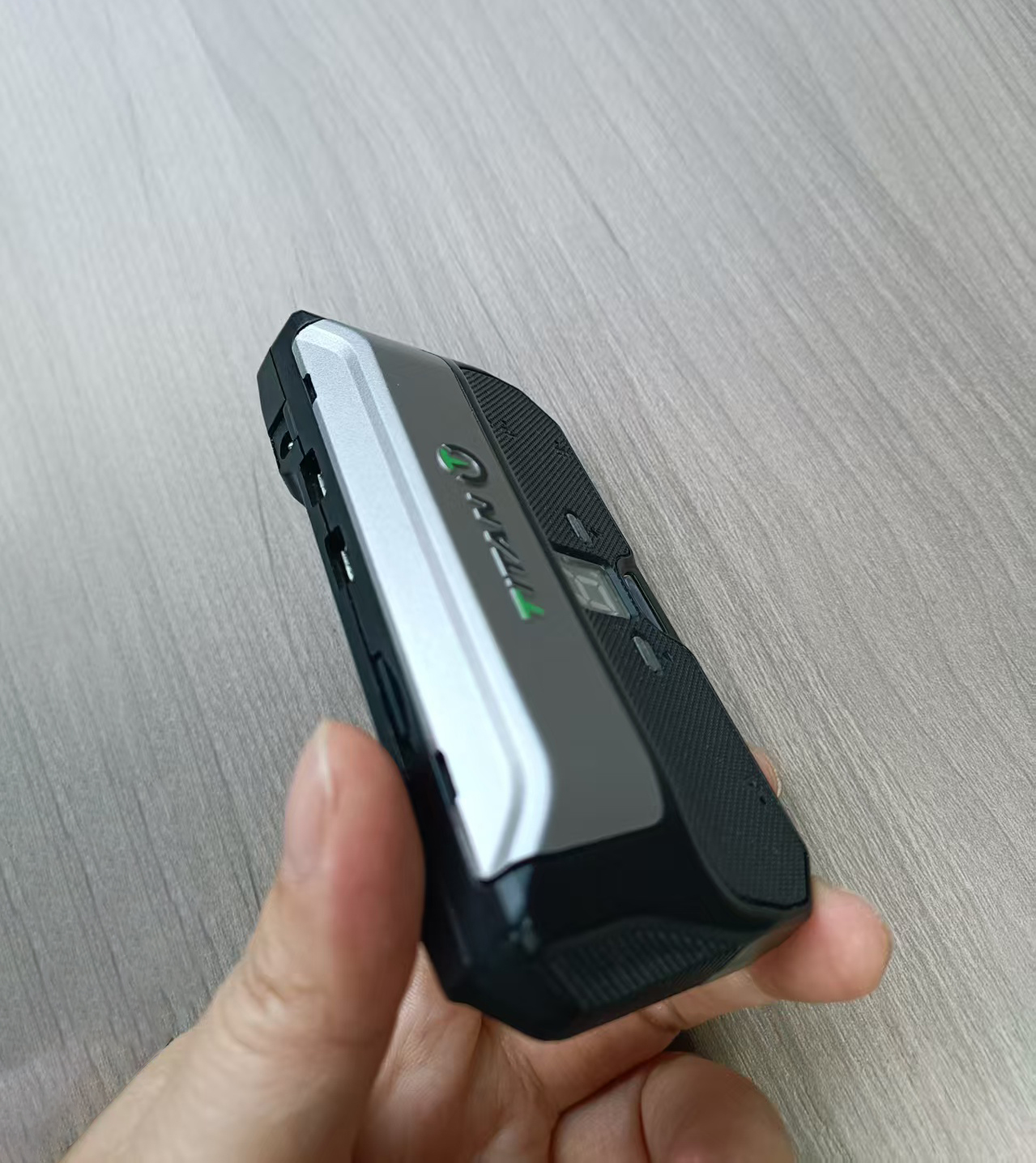
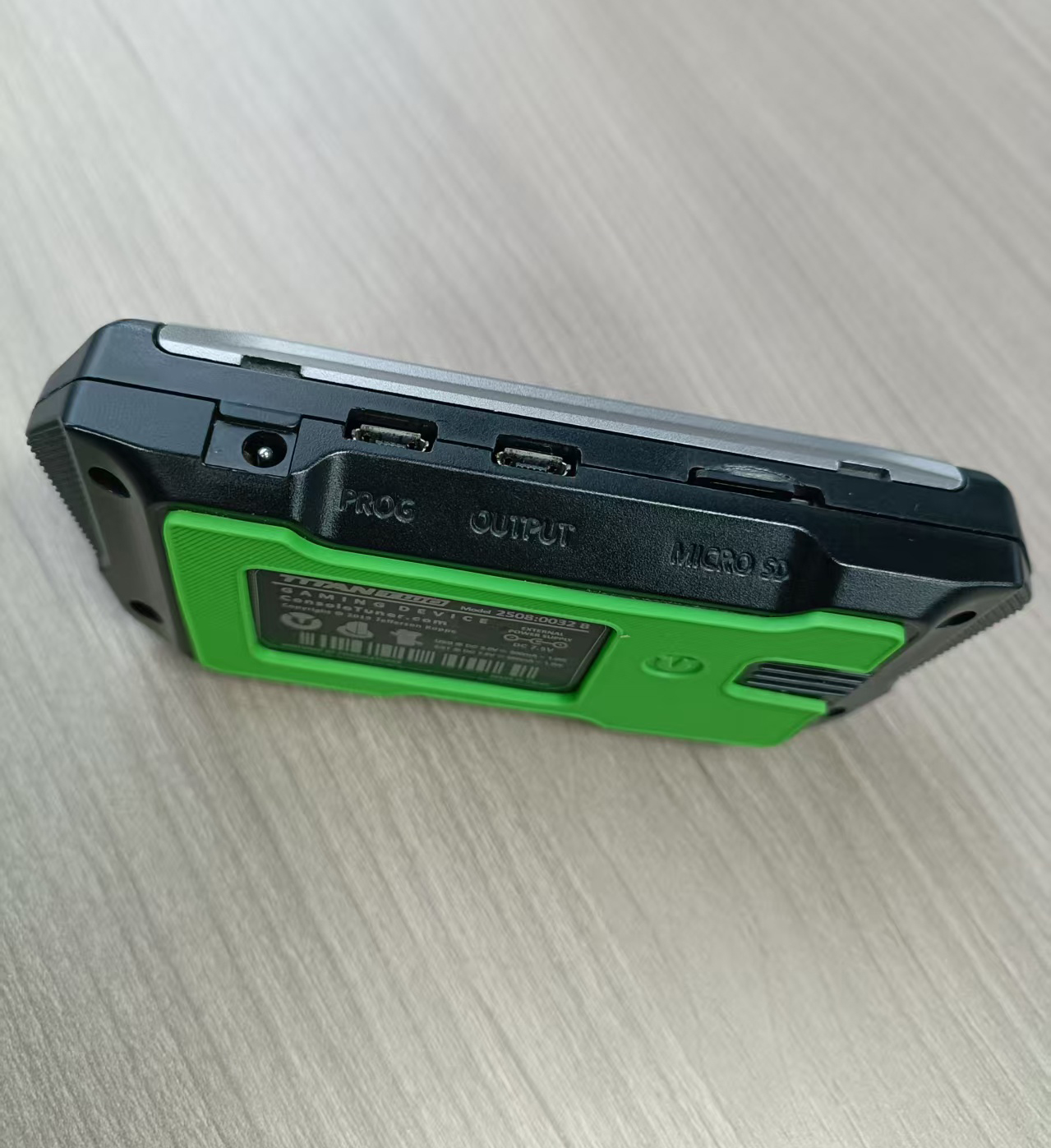
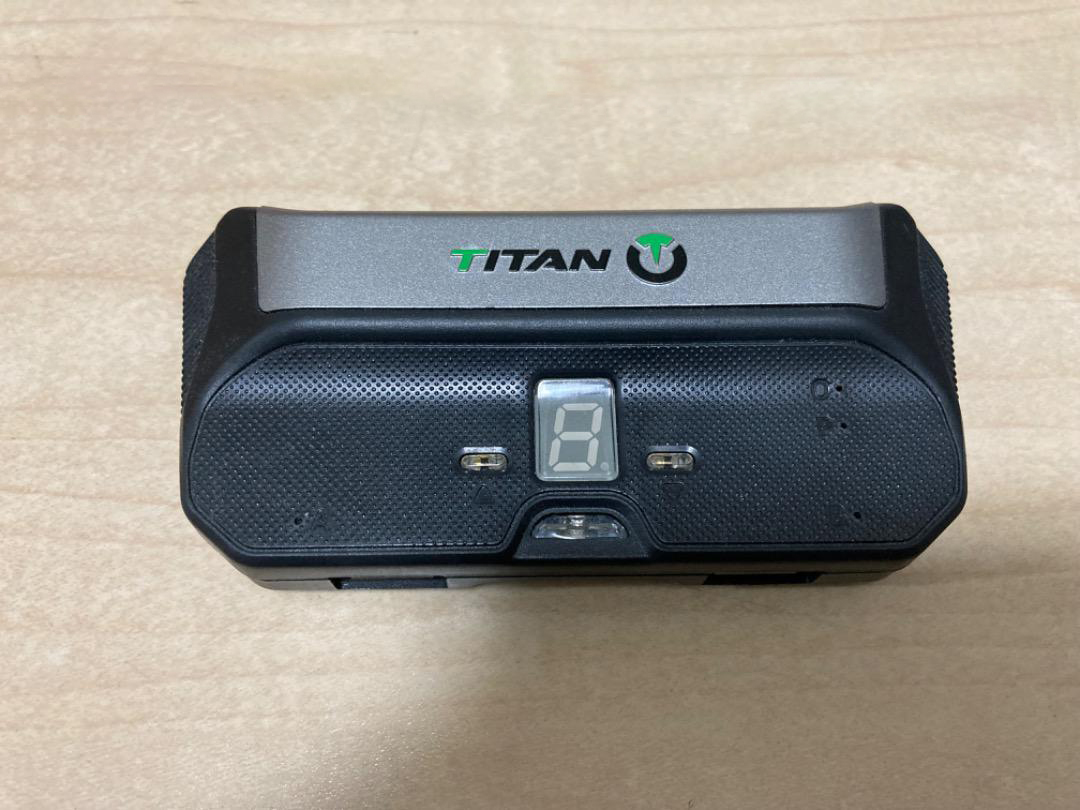
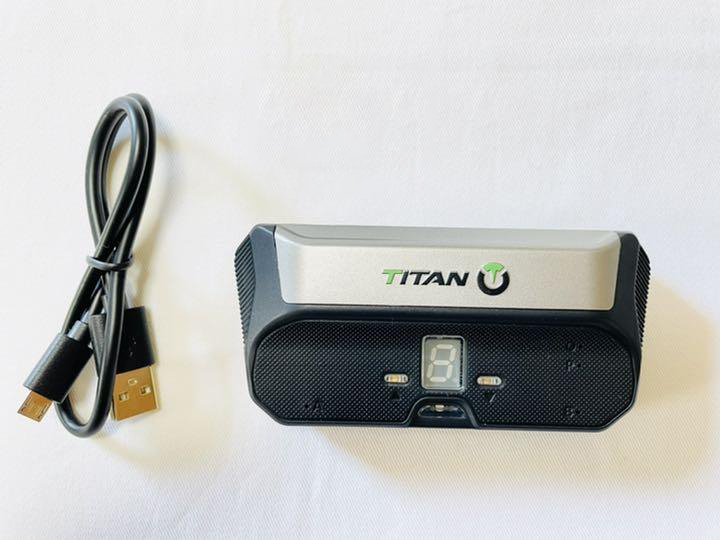
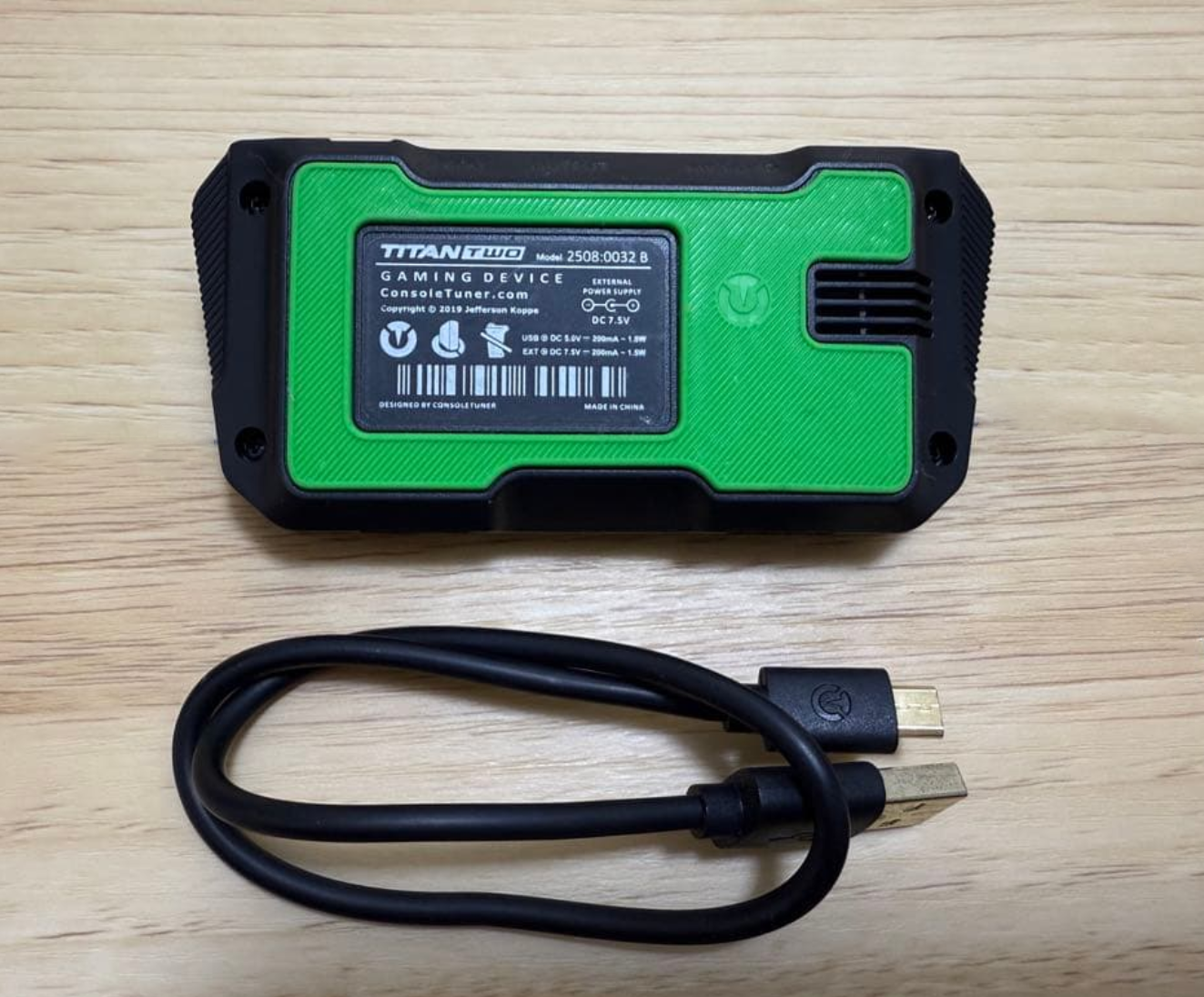
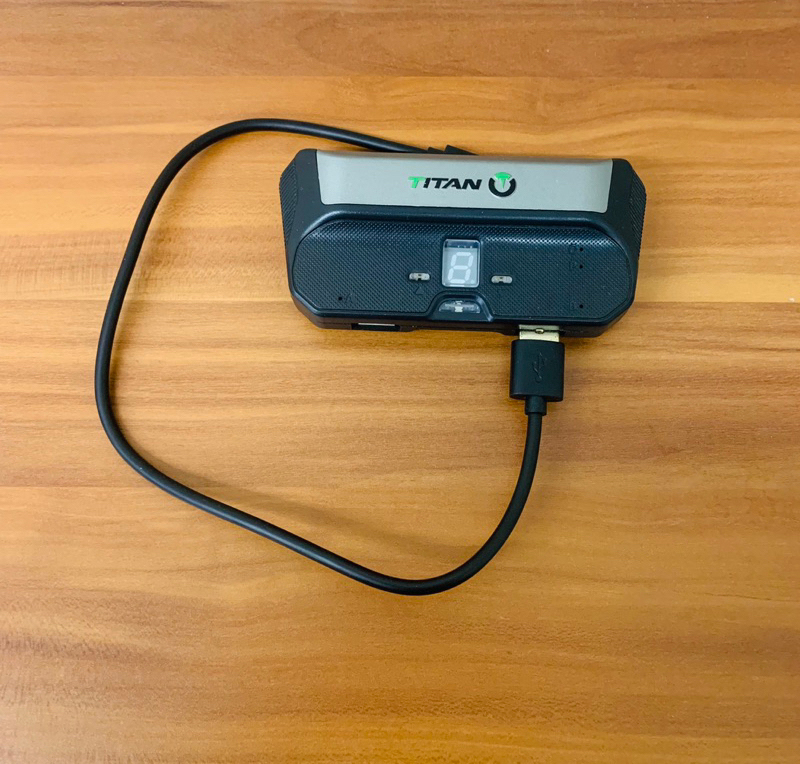
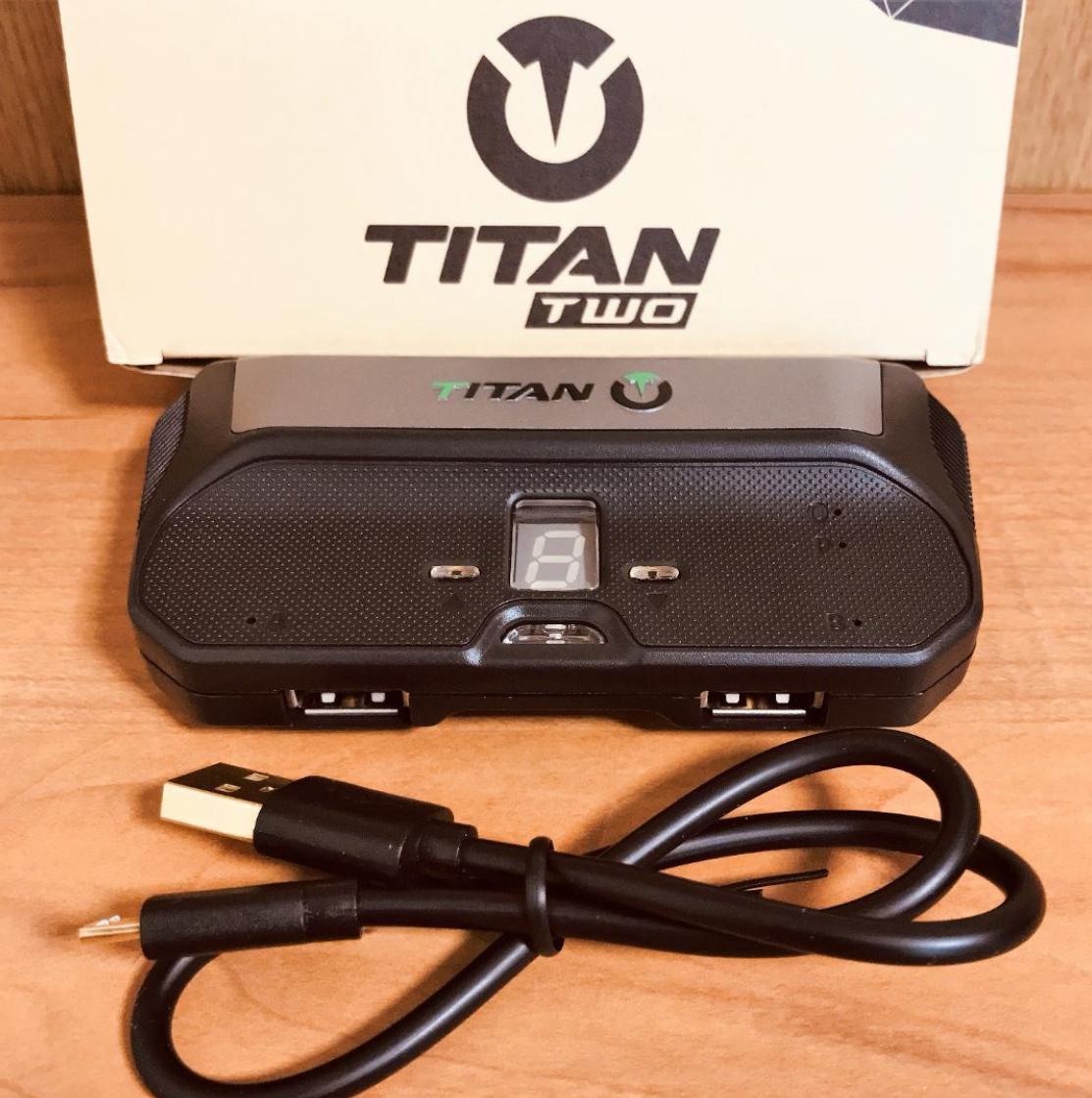
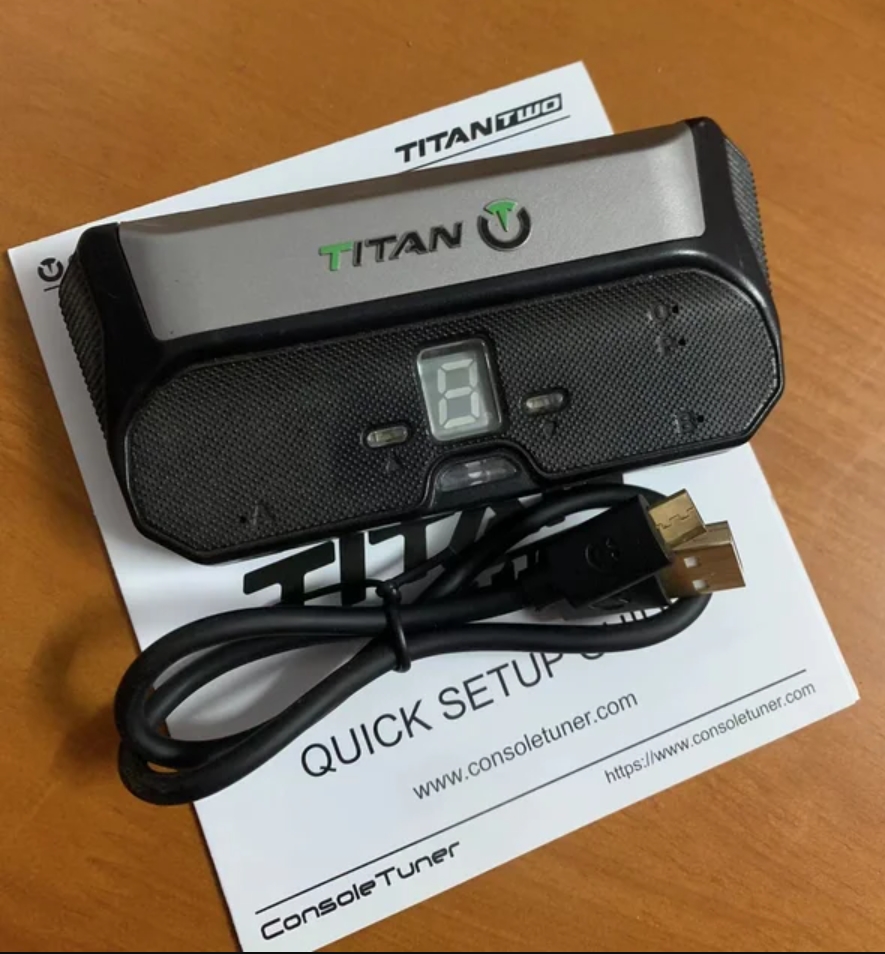


Can Be Updated! Licensed ConsoleTuner Titan 2 Device Titan TWO Gaming Adapter Gaming Converter for PS4/PS3/Xbox Game Console
${{shopModel.rebate>0?shopModel.discountPriceStr:shopModel.formattedAmount}}
$ {{shopModel.formattedAmount}}
Like
{{item.name}}
Quantity:
Estimated Delivery Date: Oct 20 - Oct 27
Frequently Asked Questions
How can I contact customer service?
Do you ship overseas?
How long will it take to get my order?
Specifications
{{item.name}}
{{item.value}}
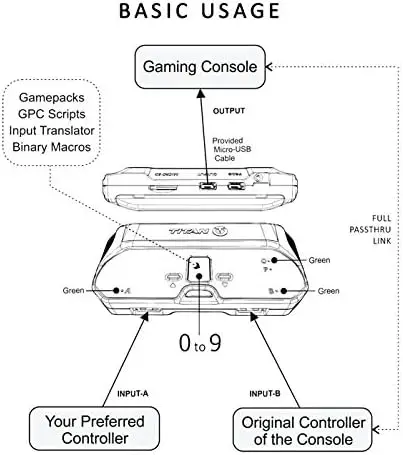
How to Update the Titan Two
Step 1.Download and install the Titan Two software (GTuner IV) from the Titan Two website.

Step 2. Select Extract All and select your file location:

Step 3. Double click on the Gtuner application to open:

Step 4. Check for a GTuner software update: Click Tools > Check for Updates (without the Titan Two plugged in):

Note: Sometimes a warning message appears as Windows doesn’t recognise the application. If you have downloaded from the GTuner download on the Titan Two website, click More info > Run anyway.


Step 5.Plug the Micro USB cable included with the Titan into the ‘Prog’ port:

Step 6. Connect the Titan Two to a PC via the USB cable provided. You should see a light appear next to the letter P to the right of the display.
Note: the Titan Two adapter works best with the quality of USB micro cable provided in the package with the device. It may not work well with other USB micro cables:

Step 7.Check for a firmware update. This is the same as Step 4 but with the Titan Two plugged in.
To do this, click Tools > Check for Updates. GTuner will then check for firmware updates and inform you when everything is up to date:

Once you have finished programming the Titan Two, remember to plug the USB cable into its ‘Output’ port before using it.
Further Configuring the Titan Two
The following steps are optional, but we apply them when setting up our Titan Two adapters for reliable use.
Step 1. Configure the Titan Two adapter.
Go to Device Configuration (bottom right corner of GTuner next to Device Memory slots) > Recall Loaded Memory slot (scroll down to get this on right hand side of GTuner):

Step 2. Finalise the update by disabling memory slot selection using the controller. We tend to turn this option off to prevent accidental profile shifting during standard gameplay.
To do this, go to Device configuration (bottom corner of GTuner) > Disable memory slot selection using the controller (ensure this is ticked):

Once you have finished programming the Titan Two, remember to plug the USB cable into its ‘Output’ port before using it.
CUSTOMER REVIEWS
{{commentStat.averageRating}}
{{commentStat.total}} Revirews
All({{commentStat.total}})
Images({{commentStat.imgSum}})
5 Star({{commentStat.praiseSum}})



{{item.comments}}